


If you’re serious about improving your website's loading speed, you need to focus on the big wins first. From my experience, the four areas that deliver the most significant performance boosts are optimising your images, leveraging browser caching, using a Content Delivery Network (CDN), and, crucially, choosing a high-performance hosting plan.
Getting these right ensures your visitors have a fast, responsive experience from the moment they land on your site.
Why Website Speed Is a Game Changer
Before we get into the nitty-gritty, let's be clear about why a fast website is absolutely non-negotiable. Slow loading times aren't just a minor annoyance; they're a direct threat to your bottom line, your users' trust, and your search engine rankings. Every second, every millisecond, even, shapes a visitor's perception of your brand's credibility and professionalism.
The financial hit from a sluggish website is well-documented and quite stark. A mere one-second delay in page load time can cause a 7% drop in conversions. That's real money left on the table.
And it gets worse. Pages that take five seconds to load see a staggering 38% bounce rate. In contrast, sites loading within a snappy two seconds see visitors stick around for an average of 8.9 pages. The correlation is clear: faster speeds lead to better engagement and more revenue. For more insights, you can check out these revealing UK web design statistics.
To illustrate this, here’s a quick summary of how even small delays can have a major impact.
Impact of Loading Speed on Key Business Metrics
| Load Time Delay | Potential Impact on Conversions | Average Bounce Rate Increase |
|---|---|---|
| 1 second | Up to a 7% decrease | Rises significantly |
| 3 seconds | Conversion rates can drop by 50% | Bounce rate can exceed 32% |
| 5 seconds | Customers are 90% more likely to leave | Jumps to 38% or higher |
These figures show that every second shaved off your load time directly contributes to a better user experience and a healthier business.
Core Web Vitals and User Experience
Google has really formalised how it measures a page's real-world user experience with a set of metrics called Core Web Vitals. This isn't just about how fast a page loads anymore; it's about how it feels to the user.
- Largest Contentful Paint (LCP): This measures how long it takes for the largest element (usually an image or a block of text) to become visible. It’s a great proxy for perceived load speed.
- First Input Delay (FID): Ever clicked a button and nothing happened for a moment? FID measures that delay between a user's action and the browser's response. It’s all about interactivity.
- Cumulative Layout Shift (CLS): This tracks how much the page layout unexpectedly jumps around as it loads. A low CLS means the page is visually stable and not frustrating to use.
This screenshot from Google's web.dev shows how these are scored. You're aiming for "Good" across the board.

Hitting those "Good" scores is a powerful signal to Google that your site offers a fantastic user experience, which can give your SEO a nice boost. It's a perfect example of why improving user engagement on your website and performance optimisation go hand-in-hand.
Understanding Time to First Byte
There's another metric you absolutely have to know: Time to First Byte (TTFB). This is how long it takes for your browser to receive the very first byte of data from the server after you’ve requested a page.
TTFB is a pure indicator of your server's responsiveness. A slow TTFB points to underlying issues like poor hosting, bloated backend code, or database bottlenecks that need addressing before any front-end optimisations can be effective.
Think of it this way: if your TTFB is slow, it means the server is taking too long to even start sending the webpage. This creates a delay that everything else is built on top of, making a fast experience impossible. Getting your TTFB sorted is often the first real step towards a high-performance website.
Slash Load Times with Smart Image Optimisation
When a page feels sluggish, chances are the images and videos are the main culprits. They're almost always the heaviest parts of a website, so getting them right is one of the quickest ways to improve your loading speed. This isn't just about running your pictures through a compressor; it’s about having a smart, deliberate strategy for every visual you use.
Think about it: a single, unoptimised hero image can be all it takes to sink your performance scores. Visitors will get frustrated and leave before they've even had a chance to see what you have to offer. The good news? With a few modern techniques, you can have stunning visuals without the performance hit.
Choose the Right Image Format
For years, we all relied on JPEGs and PNGs, but the game has changed. Newer formats offer far better compression, meaning you get smaller file sizes without sacrificing quality. The goal is simple: serve the smallest file that still looks fantastic on your user's screen.
- WebP: This is Google's creation, and it's a brilliant all-rounder. WebP files are often 25-34% smaller than equivalent JPEGs, and you'd be hard-pressed to spot the difference. It also handles transparency and animation, making it a great replacement for both PNGs and GIFs.
- AVIF: If you really want to push performance, AVIF is the way to go. It can slash file sizes by over 50% compared to JPEG. Browser support is still catching up, but for sites where speed is everything, it's a powerful tool to have in your arsenal.
Luckily, you don't have to manage this manually. Many modern CMS platforms and plugins can automatically convert your images to WebP and serve them to browsers that support it. It's an easy win.
Master Compression Before and After Upload
I always think of image compression as a two-step process. You've got the work you do before uploading, and then the automated optimisation that happens after. Both are crucial.
Starting with a reasonably sized file is non-negotiable. I often use tools like Squoosh because it gives you a live preview of the trade-off between quality and file size. You can see exactly how much you can shrink an image before it starts to look bad.
This screenshot shows just how much you can cut down an image’s file size by tweaking the quality and changing formats, often with very little visible change.
Once the image is on your site, plugins or server scripts can take over. They perform "lossless" compression, which shaves off a few more kilobytes by stripping out hidden data without touching the image quality. This double-pass ensures your visuals are as lean as possible.
The aim isn't just to make images smaller. It's about finding that sweet spot where the file size is low, but the visual quality is still high enough to represent your brand well. A blurry, over-compressed image can be just as damaging as a slow-loading one.
Implement Lazy Loading and Responsive Images
Why force a user to download every single image on a page, especially the ones at the very bottom they might never scroll to? This is where lazy loading comes in.
This clever technique tells the browser to hold off on loading images that are "below the fold" until the user actually scrolls near them. This makes a huge difference to the initial page load time, as the browser only has to deal with the visuals it needs to show right away.
You also need to serve different image sizes to different devices. It's incredibly wasteful to send a massive desktop image to a small mobile phone. HTML's srcset attribute solves this problem beautifully. It lets you provide a list of different-sized versions of an image, and the browser intelligently picks the best one for its screen size and resolution. Mobile users get a fast experience, and desktop users still see a crisp, high-quality image.
And while you're optimising your images, don't forget their SEO value. You can learn more about how to properly use the alt attribute in SEO and how it can help in our detailed guide.
Optimise Your Video Strategy
If you think images are bad for page speed, videos can be a disaster if handled incorrectly. My number one rule is this: never, ever upload video files directly to your own server. It will eat up your bandwidth and bring your site to a grinding halt.
Instead, always use a dedicated video hosting platform like YouTube, Vimeo, or Wistia. These services are built from the ground up to stream video efficiently to anyone, anywhere in the world. When you embed a video from one of these platforms, your page only loads a lightweight thumbnail and player. The heavy video file itself only starts streaming from their powerful servers when someone hits "play." This keeps your own pages light and fast.
Getting your assets right is one of the most effective things you can do for site speed. According to recent findings, smart strategies like image compression can cut page weight by as much as 45%. You can discover more insights about the impact of these techniques on load times and see just how much of a difference it makes.
Get Instant Speed Gains With Caching and CDNs
Once you've got your images and other assets trimmed down, the next big win comes from rethinking how those files get to your visitors. This is where two incredibly powerful tools come into play: browser caching and Content Delivery Networks (CDNs). If you're serious about slashing your load times, you need to get to grips with both.
Imagine asking a visitor's browser to download your logo, stylesheets, and scripts every single time they click on a new page. It’s like having to introduce yourself to a good friend over and over again. It's wildly inefficient. Caching fixes this.
How Browser Caching Works
Browser caching is a beautifully simple concept. You tell a visitor's web browser to save certain files from your site on their computer. When they come back later or visit another page, their browser just grabs the files from its local storage instead of asking your server for them all over again.
The result? Near-instant page loads for returning visitors. The heaviest parts of your site are already there, waiting.
To make this happen, you need to set up cache-control headers on your server. These are just rules that tell browsers what to save and for how long. For example, you could set rules like this:
- Your Logo: It probably never changes. Tell browsers to hang onto it for a year (max-age=31536000).
- CSS Stylesheets: These might get updated occasionally. A week is often a good starting point (max-age=604800).
- HTML Document: The page content itself is dynamic, so you'll want this to have a very short cache time, or none at all, to ensure people always see the latest version.
You can often configure these by editing a file on your server (like .htaccess for Apache) or, much more easily, by using a plugin on a platform like WordPress.
What Is a Content Delivery Network?
While caching is a game-changer for repeat visitors, a Content Delivery Network (CDN) makes your site faster for everyone, especially people who are geographically far from your main web server. A CDN is essentially a network of servers spread across the globe, all holding a copy of your site's static files (images, CSS, JavaScript).
When someone visits your website, the CDN intelligently delivers those files from the server closest to them. Someone in Manchester gets your content from a server in London, not from your primary one in Dallas. That massively reduces the physical distance the data needs to travel.
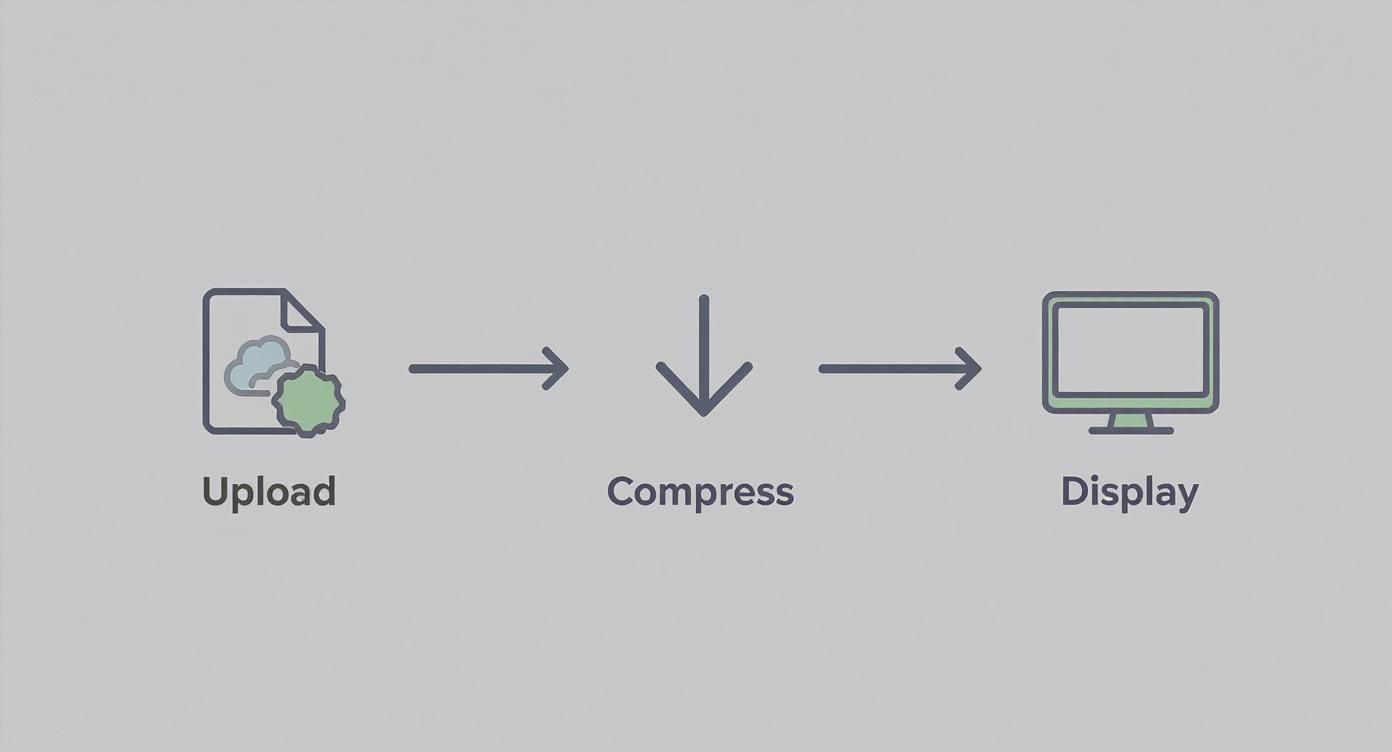
This infographic gives a great high-level view of how assets are optimised before they're served, a process that CDNs are built to handle perfectly.
Want a free audit like this for your own site?
We'll show you exactly what's holding your rankings and conversions back. No sales pitch.
Get My Free AuditAs you can see, optimising the assets is just one part of the puzzle. The CDN ensures that optimised content is delivered with lightning speed.
The core job of a CDN is to crush latency, the delay it takes for data to get from your server to the user. By physically shortening that distance, a CDN can shave precious seconds off your load time, particularly for an international audience.
Getting a good grasp of the fundamentals can really help, as a better understanding network latency reveals the exact bottlenecks that CDNs are designed to solve.
Choosing the Right CDN Provider
Getting a CDN set up is much easier than it sounds, and many of the best providers have generous free plans that are perfect for getting started.
Here’s a quick look at a few of the big players:
| Provider | Best For | Key Feature |
|---|---|---|
| Cloudflare | Beginners & Security | Has an amazing free plan that includes top-tier security like DDoS protection. |
| Bunny CDN | Cost-Effectiveness | Its pay-as-you-go model makes it incredibly affordable for smaller sites. |
| Amazon CloudFront | Scalability & Power | The go-to choice for large-scale applications already within the AWS ecosystem. |
If you're on WordPress, this is incredibly straightforward. Plugins like W3 Total Cache or WP Rocket can integrate with a CDN in minutes. You just install the plugin, pop in your CDN details, and it handles the rest, automatically rewriting your asset URLs to point to the CDN. It's one of the single most impactful changes you can make to your site's speed.
Tame Your Scripts and Clean Up Your Code
https://www.youtube.com/embed/0fONene3OIA
Messy, inefficient code is one of those hidden problems that can absolutely cripple your site's speed, often without you even realising it's the culprit. Think of it like a car engine; if it’s full of junk and running poorly, you're never going to hit top speed. Getting real results means digging into both the front-end and back-end code to make things lean and fast.
One of the quickest wins here is minification. This is a simple process that strips out all the characters a browser doesn't need to read your code, things like comments, whitespace, and line breaks. While those things help developers read the code, they're useless for a browser and just add extra weight to your files.
By minifying your HTML, CSS, and JavaScript, you can shrink their file sizes quite a bit, which means they download and run much faster for your visitors. Most good caching plugins or performance tools can handle this automatically.
Get Rid of Render-Blocking Resources
If you've ever run a site through a speed test, you've probably seen a warning about "render-blocking resources." This almost always points to JavaScript or CSS files being loaded in the <head> section of your site. What happens is the browser has to stop everything, download, and process these files before it can show any of your actual content. That’s what causes that frustrating blank white screen delay.
The fix is to be smarter about how and when you load these scripts.
- Defer Your JavaScript: Add the
deferattribute to a script tag, and you're telling the browser to download it in the background while it continues building the page. The script won't run until the rest of the HTML is ready. This is the perfect solution for things that aren't needed right away, like your analytics scripts or social media widgets. - Load Scripts Asynchronously: The
asyncattribute also lets the script download in the background without holding up the page. The main difference is thatasyncscripts will execute the moment they finish downloading, which could interrupt the page rendering. It's best reserved for independent, third-party scripts where the timing doesn't really matter.
The core idea is to protect the critical rendering path. Load only the absolute essentials needed to display the content your user sees first. Everything else, from chat widgets to footer scripts, can wait until the main content is up and running.
Adopting this approach makes a huge difference to your perceived load speed and those all-important Core Web Vitals scores.
Audit Your Plugins and Theme
For anyone running a CMS like WordPress, the biggest source of code bloat is almost always your plugins and theme. Every single plugin adds its own CSS and JavaScript, and a poorly coded theme can add hundreds of kilobytes of dead weight to every page load. It’s a simple equation: a bloated setup equals a slow website.
You absolutely have to be ruthless and regularly audit what you’ve got installed. If you aren't using a plugin, deactivate and delete it. For the ones you keep, you need to understand their performance impact. Tools like Query Monitor are brilliant for spotting which plugins are making slow database queries or loading too many scripts.
When you're choosing a new theme or plugin, performance should be your top priority. Look for developers who describe their products as "lightweight" or "performance-focused." Before you install anything, run its demo page through a speed tool. See how it performs right out of the box. Starting with a fast foundation makes everything else so much easier.
A thorough performance review is a non-negotiable part of any serious technical SEO work. For a more structured approach to finding these kinds of issues, our technical SEO audit checklist can guide you through the entire process.
Comparison of Code Optimisation Techniques
To help you get your head around the different methods, here's a quick breakdown of the most common ways to streamline your site's code.
| Technique | What It Does | Primary Benefit |
|---|---|---|
| Minification | Removes unnecessary characters (spaces, comments) from code files. | Reduces file size for faster downloads. |
| Defer Loading | Delays JavaScript execution until after the page's HTML has been parsed. | Eliminates render-blocking scripts and speeds up initial page view. |
| Gzip Compression | Compresses files on the server before sending them to the browser. | Dramatically reduces transfer sizes for text-based assets like HTML and CSS. |
| Code Splitting | Breaks large JavaScript files into smaller chunks that load on demand. | Users only download the code needed for the specific page they are viewing. |
Each of these techniques tackles a different part of the problem, but together they can make a massive improvement to your site's overall performance.
Choose Hosting That Powers Performance
Your choice of web host is the single most important decision you'll make for your site's speed. It’s the bedrock of performance. Everything else you do, from image optimisation to code minification, builds on this foundation.
A sluggish server can easily add hundreds of milliseconds to every single request before your website even starts to load. And if you think you can just fix it later, be warned: migrating a live site can be a major headache, often causing performance dips and messing with your hard-won SEO rankings.
Remember, not all providers are created equal. They differ wildly in network quality, peering arrangements, and even the physical location of their data centres. Simply choosing a host with a data centre closer to your main audience can shave precious milliseconds off your load times.
Shared Hosting vs VPS vs Dedicated
You've got three main options, and picking the right one from the start saves a lot of trouble down the road.
- Shared hosting is fine for a personal blog or a brand-new, low-traffic site. It’s cheap, but you're sharing resources with dozens, sometimes hundreds, of other websites.
- A Virtual Private Server (VPS) is the logical next step. You get a guaranteed slice of a server's power, giving you more control and much more predictable performance.
- Dedicated servers are the top tier. You get the whole machine to yourself, offering maximum power, but they come with a higher price tag and require technical know-how to manage.
Think about your traffic and budget honestly. A small e-commerce shop, for example, will almost certainly outgrow a shared hosting plan within a few months. A good rule of thumb is to consider upgrading to a VPS when your CPU usage consistently spikes above 80%. This simple move keeps your pages feeling snappy for visitors. For small teams, a managed VPS often hits the sweet spot, offering the speed you need without the burden of server admin.
When Is It Time To Upgrade Your Server?
Keep a close eye on your server's vital signs. Tracking metrics like uptime and Time to First Byte (TTFB) will quickly reveal performance bottlenecks.
Sudden traffic surges from a successful marketing campaign can easily overwhelm a well-optimised VPS or even a mid-range dedicated server. Watch your CPU and memory usage, if they're constantly maxed out, an upgrade is long overdue. For database-heavy sites, like a busy WooCommerce store, disk I/O (the speed of your storage) can become a major chokepoint under heavy load.
A few server-side technologies can make a massive difference right out of the gate:
| Technology | Benefit | Performance Gain |
|---|---|---|
| PHP 8 vs 7.4 | Up to 20% faster code execution | 30% reduction in TTFB |
| Gzip Compression | Shrinks text-based files on the fly | 50% smaller transfers |
| HTTP/3 | Multiplexed requests over UDP | Up to 30% lower latency |
Modernising your tech stack, like moving to a recent version of PHP, makes your code run faster. Enabling compression is a no-brainer, it reduces the amount of data sent over the network. And HTTP/3 is a game-changer for how browsers download assets, especially on mobile connections.
A key takeaway: Choose a host that offers Gzip enabled by default and gives you an easy way to switch to the latest stable PHP version. It saves you a ton of manual configuration.
Key Features to Look For
When you're comparing hosting providers, don't just look at the price. Dig into the features that actually impact speed.
- SSD Storage: Make sure all plans use Solid-State Drives (SSDs). They are dramatically faster than old-school hard drives.
- HTTP/3 Support: This is crucial for modern web performance and a must-have for serving a global audience.
- Backups & Staging: Look for automatic daily backups and a one-click staging environment. You need a safe way to test updates without breaking your live site.
- Support: 24/7 UK-based support can be a lifesaver when you need to troubleshoot tricky server settings.
- Built-in Compression: Hosts that offer automatic Gzip and Brotli compression save you time and effort.
- Scalability: The ability to easily scale your RAM and CPU is vital for handling seasonal traffic spikes without your site falling over.
A well-executed migration to a better host can give you an immediate, noticeable speed boost. From our own experience, simply moving a test site from PHP 7.4 to 8.1 cut the TTFB by 200ms. In another test, enabling HTTP/3 via Cloudflare boosted our London-based load speed by a solid 18%.
Getting your loading speed right is essential. In the UK, the average mobile page load time is around 1.8 seconds, with desktop slightly faster at 1.6 seconds. Research shows that if a page takes longer than three seconds to load, a staggering 53% of mobile visitors will leave. You can read more about these page speed findings from LinkQuest.
Fast hosting foundations amplify every other optimisation you make downstream.
Once you’ve made the switch, don't just assume it's faster. Test it with real user metrics and keep a weekly eye on your Core Web Vitals in Google Analytics. When you start with performance-focused hosting, you set yourself up for success and make hitting that sub-two-second load time a realistic goal.
Your Burning Questions About Website Speed, Answered
When you start digging into site optimisation, a whole host of questions pop up. It's easy to get bogged down in technical jargon and confusing reports. Let's clear the air and tackle some of the most common queries I hear, giving you practical answers to help you get your site loading faster.
Are Speed Scores the Be-All and End-All?
Yes and no. It’s crucial to pay attention to them, but you need the right perspective. Think of tools like Google PageSpeed Insights and GTmetrix as diagnostic aids, not the final exam. Nailing a perfect 100 is great, but it isn't the real prize.
What truly matters is the user experience. Your focus should be on the metrics that a real person actually feels, like the Largest Contentful Paint (LCP) and Time to First Byte (TTFB). Use the scores as a guide to find problems, but don't lose sleep chasing a perfect number if your site already feels snappy and responsive to your visitors.
I always tell my clients to think of speed testing tools like a doctor's report. They provide vital data and flag potential issues, but the ultimate goal is the patient's (your website's) overall health, not just flawless numbers on a chart.
Will My WordPress Theme Really Slow Things Down?
It absolutely can. Your theme is the very foundation of your site's structure. A poorly coded or feature-heavy theme is one of the most common culprits behind slow load times. Some are stuffed with dozens of scripts, massive CSS files, and a load of features you'll never use, all of which weigh down every single page.
When you're picking a theme, actively look for ones marketed as "lightweight" or "performance-focused". Here’s a pro tip: before you commit, run the theme's own demo page through a speed test. This gives you a fantastic baseline for how it performs straight out of the box. A theme built for speed from the ground up makes every other optimisation you do that much more effective.
Is Google Tag Manager Bad for My Page Speed?
This is a really common misconception. By itself, Google Tag Manager (GTM) is incredibly lightweight and has a negligible impact. The problem isn't GTM; it's what you put inside it. The slowdown comes from piling in third-party tracking scripts for analytics, ads, and various pixels.
In fact, GTM gives you powerful tools to improve performance if you use it smartly. Instead of hard-coding scripts, you can:
- Delay non-essential tags: Set up your remarketing or heatmap tags to fire a few seconds after the page has loaded. This stops them from getting in the way of the initial content render.
- Use targeted triggers: Don't load every script on every page. Make sure scripts only fire on the specific pages where they're actually needed.
- Clean house regularly: It’s so easy to add a tag for a trial service and then forget about it. Periodically audit your GTM container and remove any old tags that are just dead weight.
How Much Does Hosting Really Matter?
Honestly? It’s everything. Your web host is the absolute foundation of your site's performance. You can spend weeks optimising every last image and minifying every line of code, but if your server is sluggish, your site will always feel slow.
A cheap, overcrowded shared hosting plan is a recipe for a high Time to First Byte (TTFB). This means visitors are left waiting before your website even starts to load. Upgrading to a quality VPS or managed hosting plan is often the single biggest performance gain you can make. When shopping around, look for providers offering modern tech like the latest PHP versions, HTTP/3, and SSD storage as standard.
For a deeper dive into improving your site's speed from the ground up, this guide on How to Optimize Website Performance is a fantastic resource. It reinforces the importance of getting the technical foundations right, because a faster server means a better experience for every single visitor.
Ready to stop guessing and start seeing real performance gains? The team at Amax Marketing provides expert technical SEO audits that pinpoint exactly what's slowing your site down. Book your complimentary marketing audit today and let us build you a roadmap to a faster, higher-ranking website.